Signing in
Open iet-field-office.pages.dev/field in Safari or Chrome and sign in with your work email. Then Share → Add to Home Screen so it's one tap. Can't get in? Email Kurtis.
Something wrong or confusing? Tap Feedback.
There's a Feedback button in the top bar of every screen. Tap it any time, type what happened — it automatically captures the screen you're on and sends it to us. No wrong answers; that's how the app gets better.
Your week — tap to expand
As you work · daily
Enter your crew's time
You enter time for your crew — they don't log in. Enter hours as worked; the office figures overtime.
▾
- 1Open Time from the home screen.
- 2Pick your entry style: By person · week (fill someone's whole week like the paper sheet) or By job · day (pick a job + day, enter hours per person).
- 3Type hours as worked — no overtime. Tap PD under a day to add per diem on that job.
- 4It saves as you go — no submit button here (that's Monday).
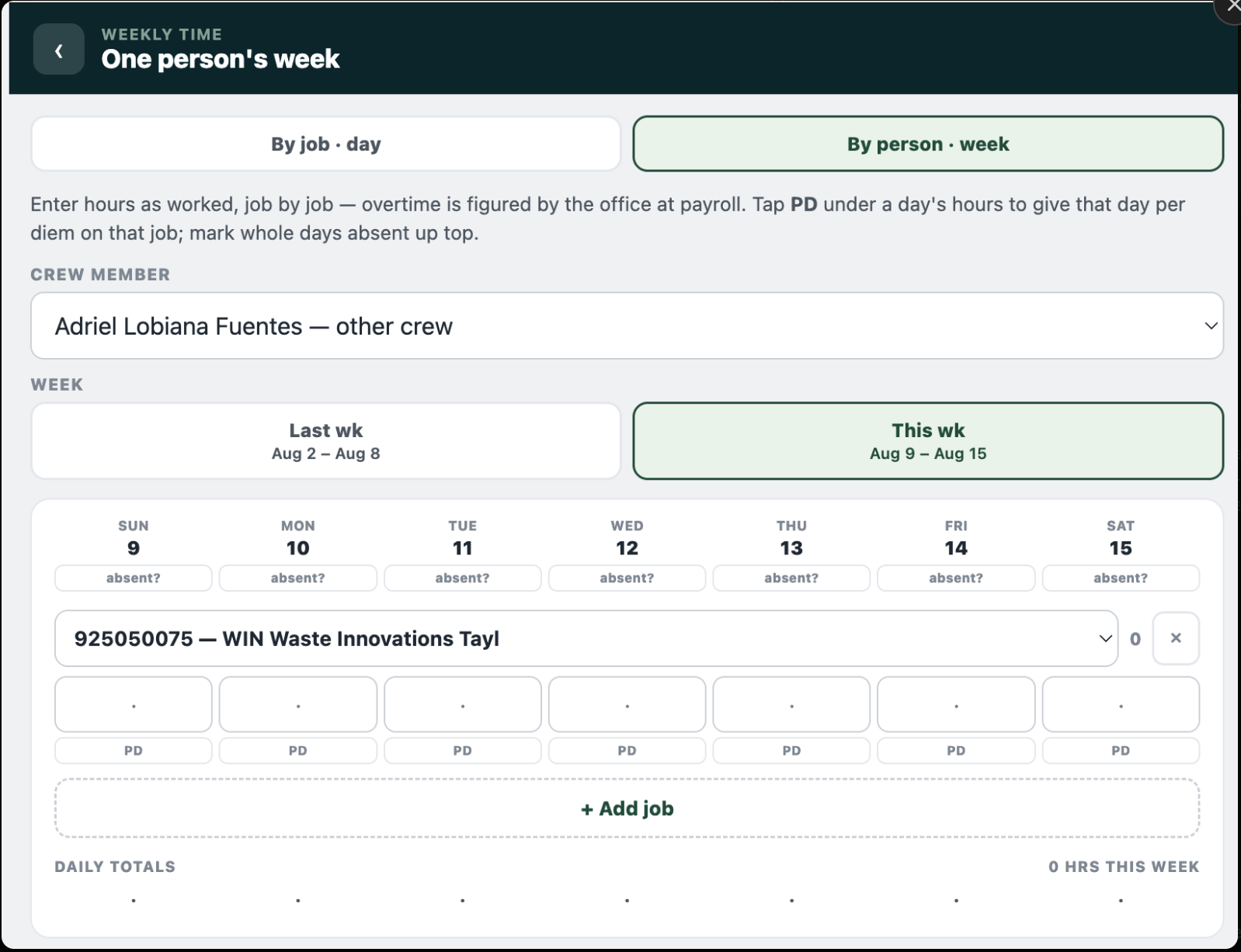
Screenshot needed: field-time-week.png
The Time screen in By person · week view, with a person selected and a few hours filled in across the week (and a PD tapped if easy).
The Time screen in By person · week view, with a person selected and a few hours filled in across the week (and a PD tapped if easy).
Every Monday
Submit payroll for last week
Review the week and send it to the office by the Monday cutoff.
▾
- 1The home screen nudges you until payroll is submitted — tap it.
- 2Review the week. You can fix any hours right on this screen.
- 3Tick the confirmation and tap Submit.
- 4The office reviews and locks the week. After it's locked, that week is read-only — text the office if something needs to change.
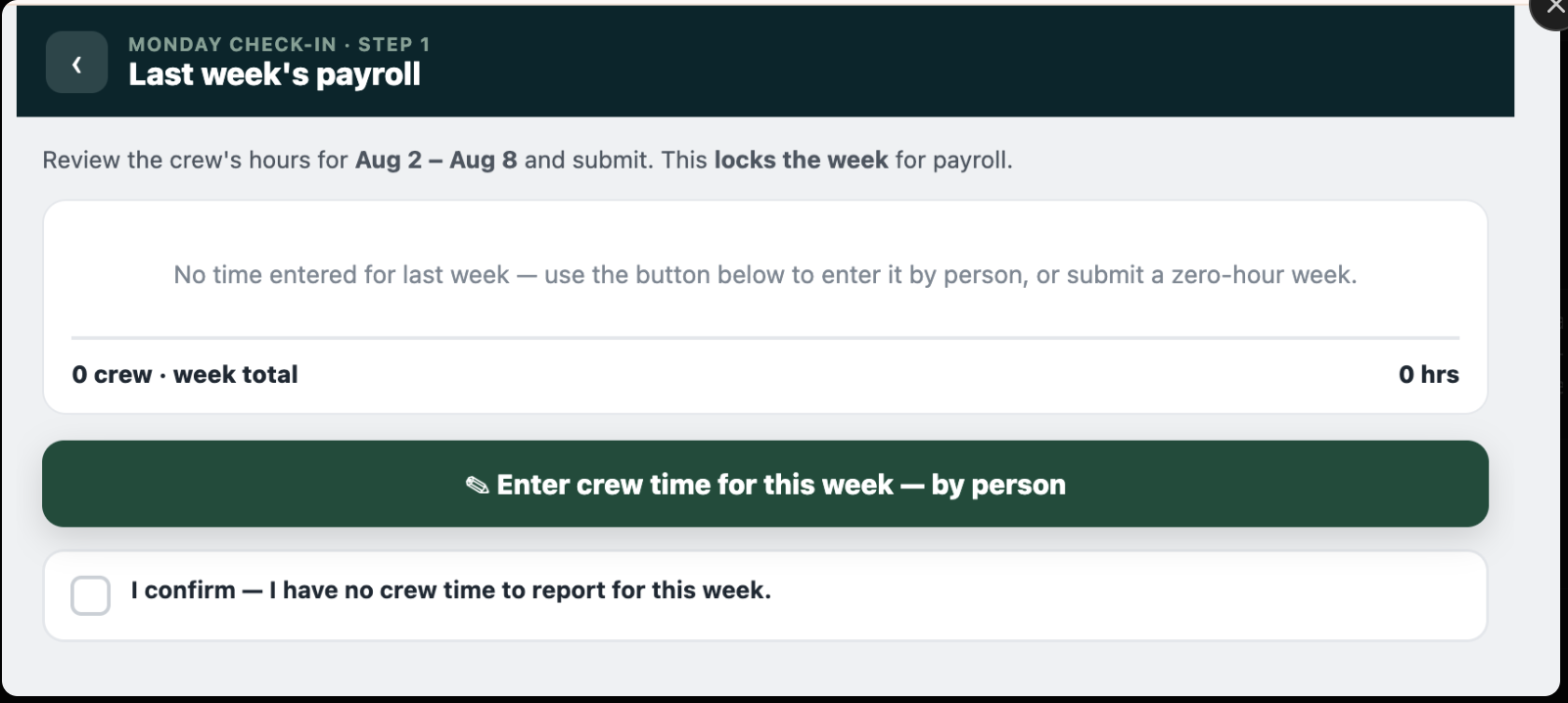
Screenshot needed: field-payroll.png
The Monday payroll review / submit screen — the week's hours with the confirmation tick and the Submit button visible.
The Monday payroll review / submit screen — the week's hours with the confirmation tick and the Submit button visible.
Every Monday
Check in on each active job
A quick note on how each job is really going — this is how the office knows.
▾
- 1For each active job, set the % complete slider and a status.
- 2Add a short note for the office if anything's off. Service jobs ask for days worked instead.
- 3At 100% you'll get the "ready to close?" question — answer it if the job's done.
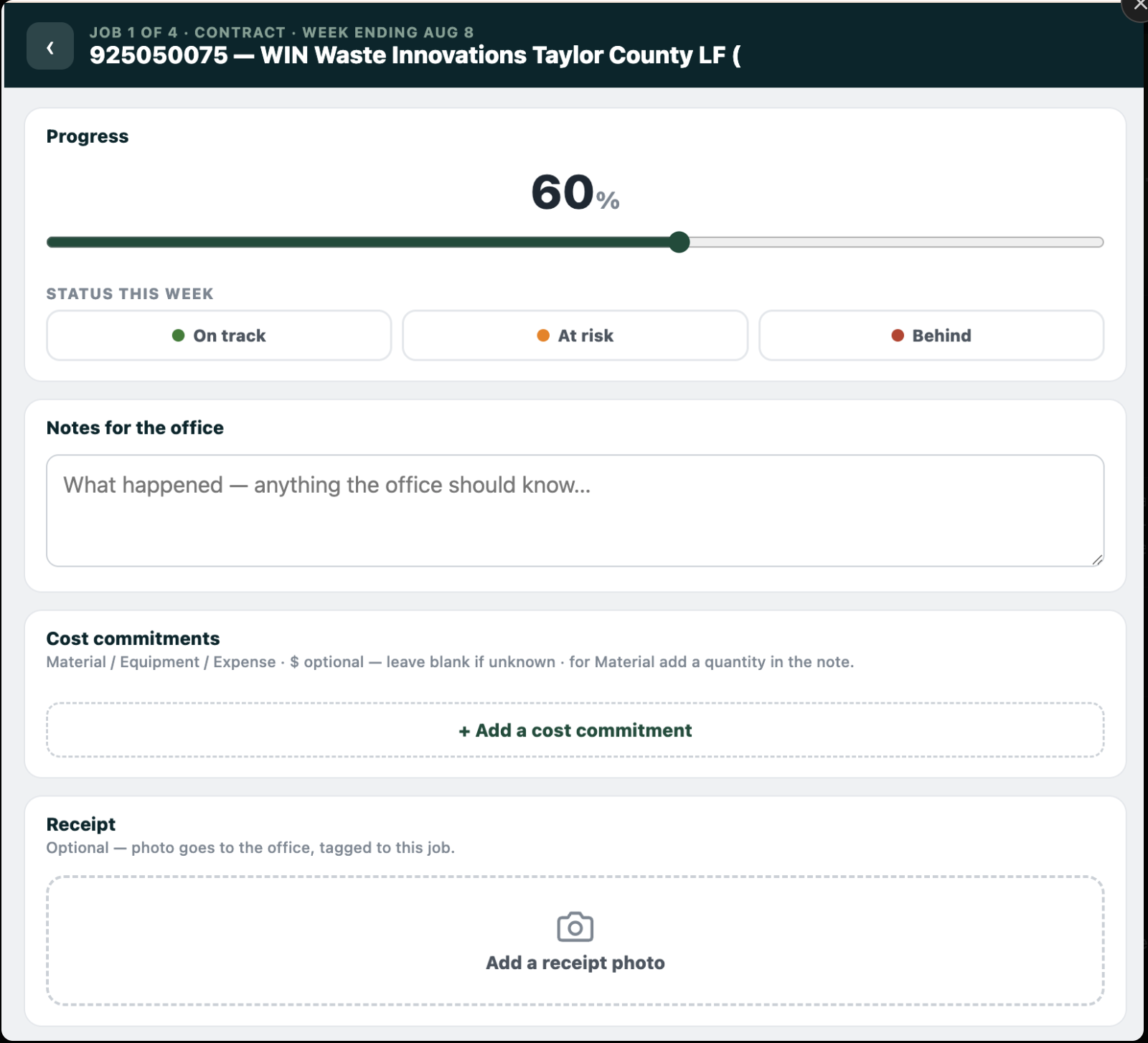
Screenshot needed: field-checkin.png
The weekly check-in screen for one job — the % complete slider, status, and the note box.
The weekly check-in screen for one job — the % complete slider, status, and the note box.
When you order
Log a commitment
Ordered material, equipment, or a rental? Log it so the office sees it before the bill.
▾
- 1On the job, tap Log a commitment.
- 2Enter the vendor, rough dollars, quantity, and whether it went on a card.
- 3Save. The office matches it to the real cost when the bill lands.
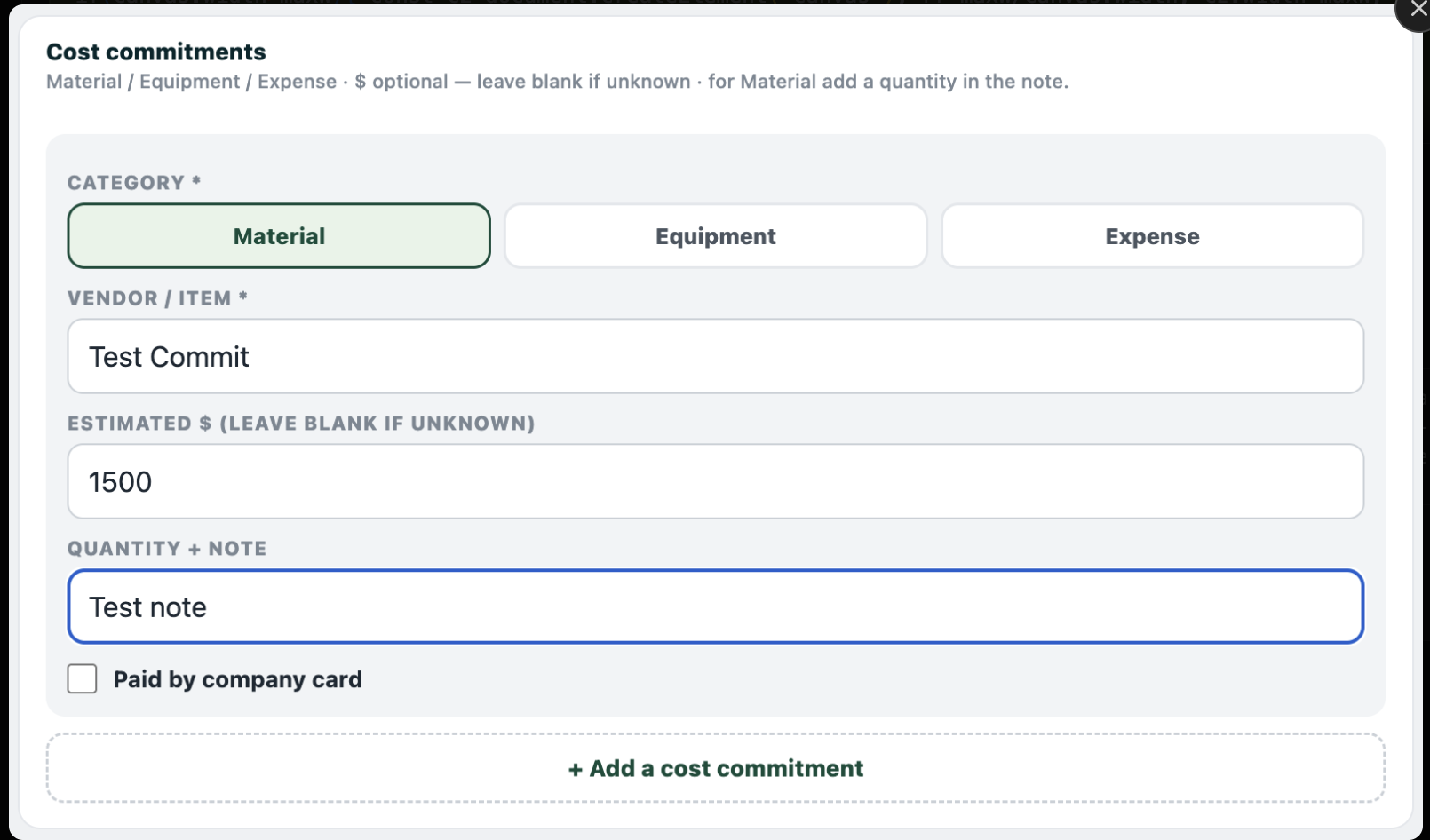
Screenshot needed: field-commitment.png
The log-a-commitment form filled in (vendor, estimated $, quantity, card toggle).
The log-a-commitment form filled in (vendor, estimated $, quantity, card toggle).
When you get a receipt
Snap a receipt
Photograph it right away so it doesn't get lost.
▾
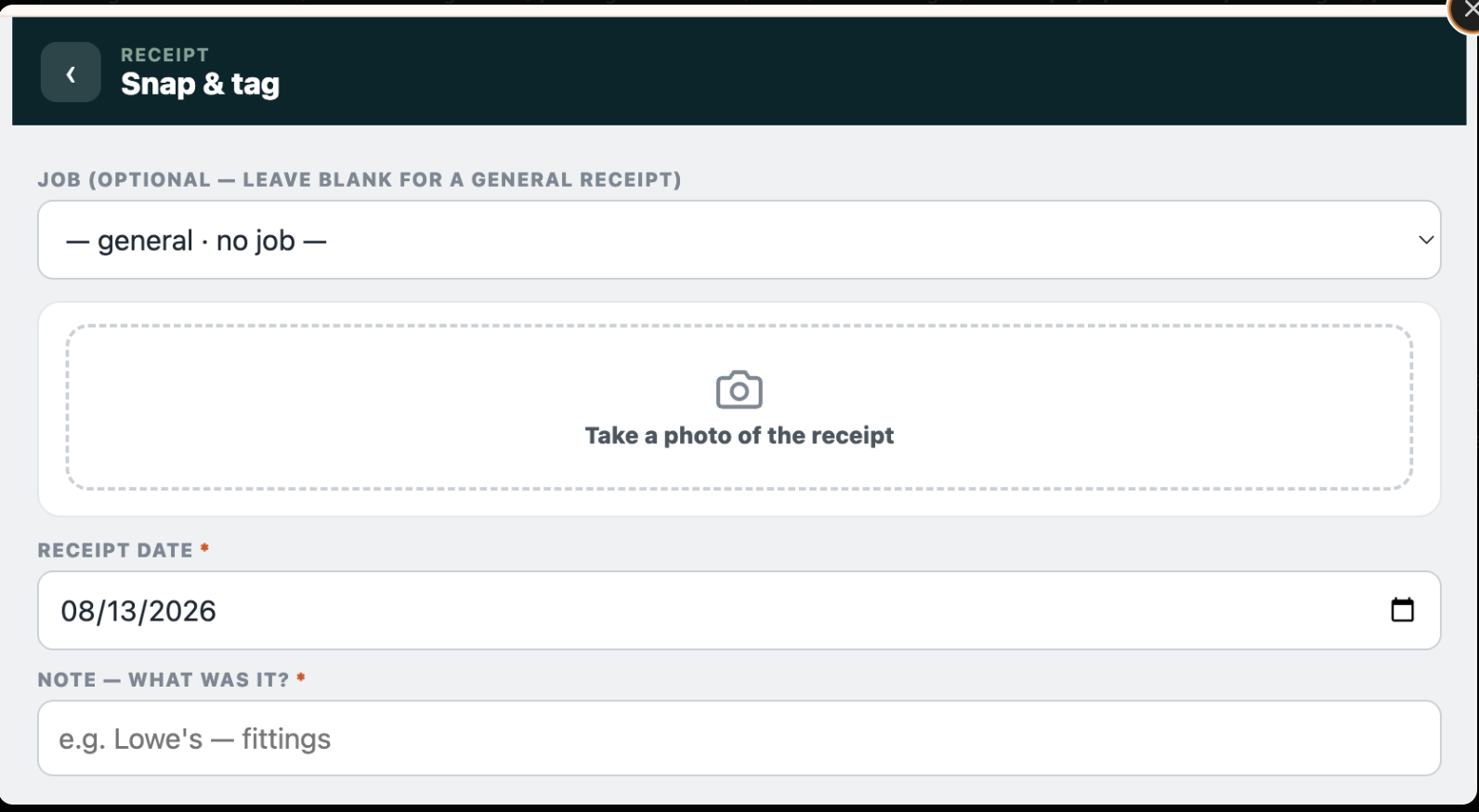
- 1Tap Receipt, take the photo.
- 2Set the date and a short note (what it was for).
- 3Pick the job — or leave it blank for a general receipt. Save.
Screenshot needed: field-receipt.png
The receipt screen with a photo added, the date, note, and job picker.
The receipt screen with a photo added, the date, note, and job picker.
When a job starts
Open a job from the field
Quick start — the office fills in the rest.
▾
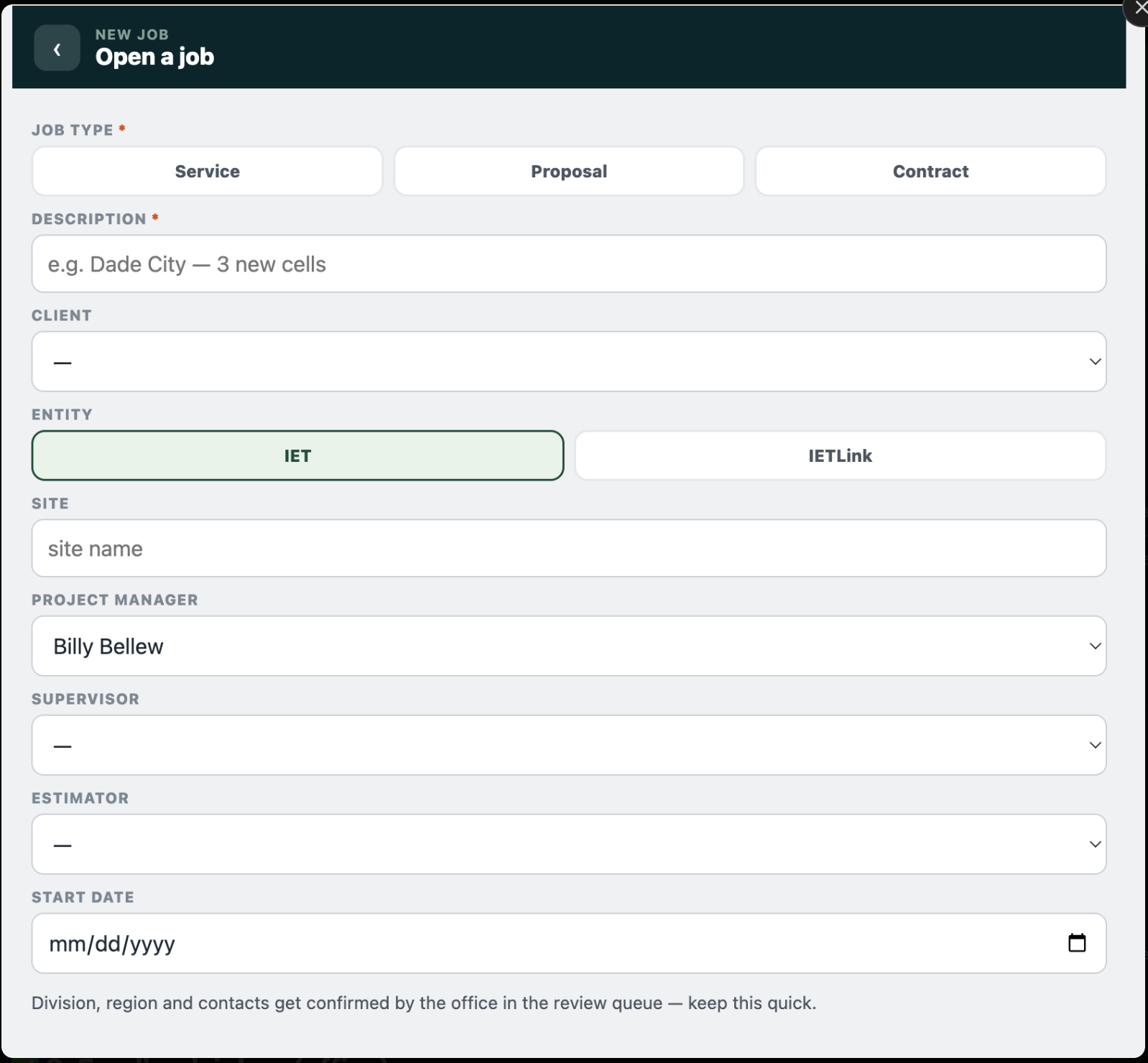
- 1Tap Open a job and enter the basics (client/site, what it is).
- 2Save — the office confirms the details (division, region, contacts) in their review queue. Keep it quick.
Screenshot needed: field-openjob.png
The light open-a-job form on the field app.
The light open-a-job form on the field app.
Good to know
A few things during the pilot
• No email alerts yet — the office sees your submissions in the app. • Keep doing your current process alongside the app until we say otherwise — nothing here replaces it yet, and test data gets reset before go-live, so use it freely.
Need a hand?
Anything in the app — tap Feedback. It captures your screen and sends it to us.
Can't sign in? Email kwh@bisoncfo.com.